
Depop Photo Resizer
Make your photos fit Depop without cutting off your item.
FreeNo sign-upImages stay in your browser
Drop your product images here
JPG, PNG or WebP • Up to 30 images
Choose a marketplace to load recommended image settings. You can change them anytime.
Image fit
Background color
Fills the space added around each photo.
How much of the canvas the complete photo fills.
Before / After
From mixed photos to consistent Depop listings.
Listing photos taken on different days, phones and backgrounds often have different shapes and framing. Image Fixer puts them on a consistent square canvas while keeping the full item visible.
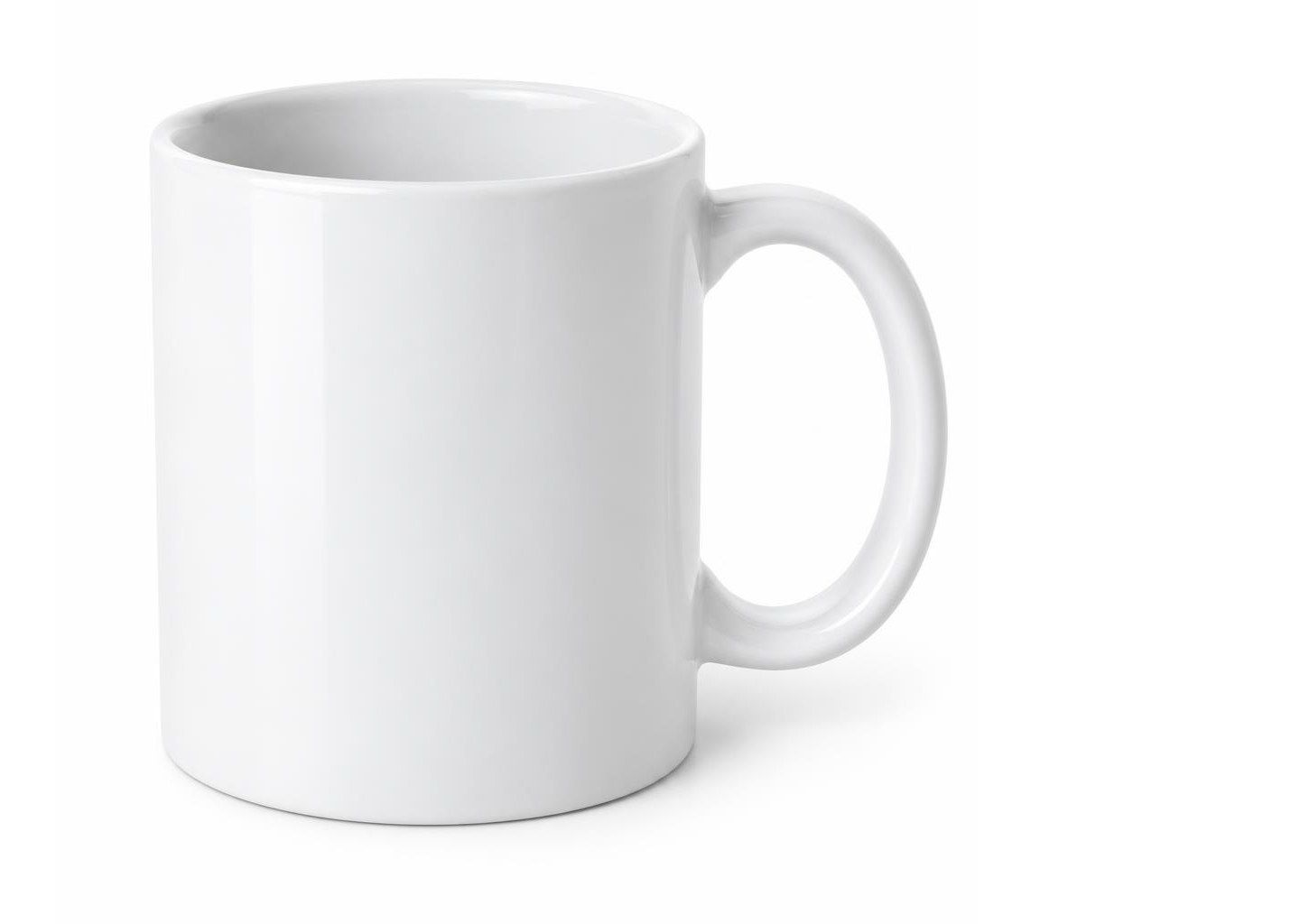
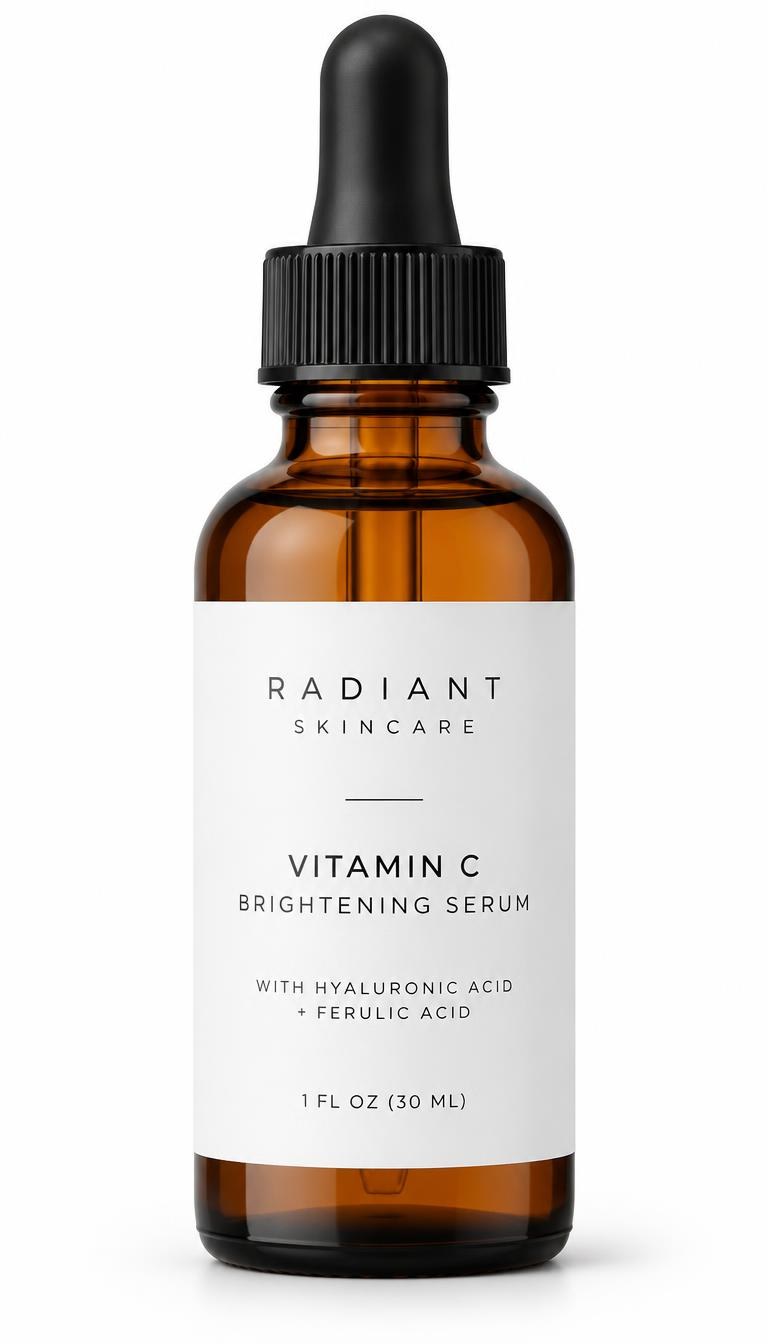
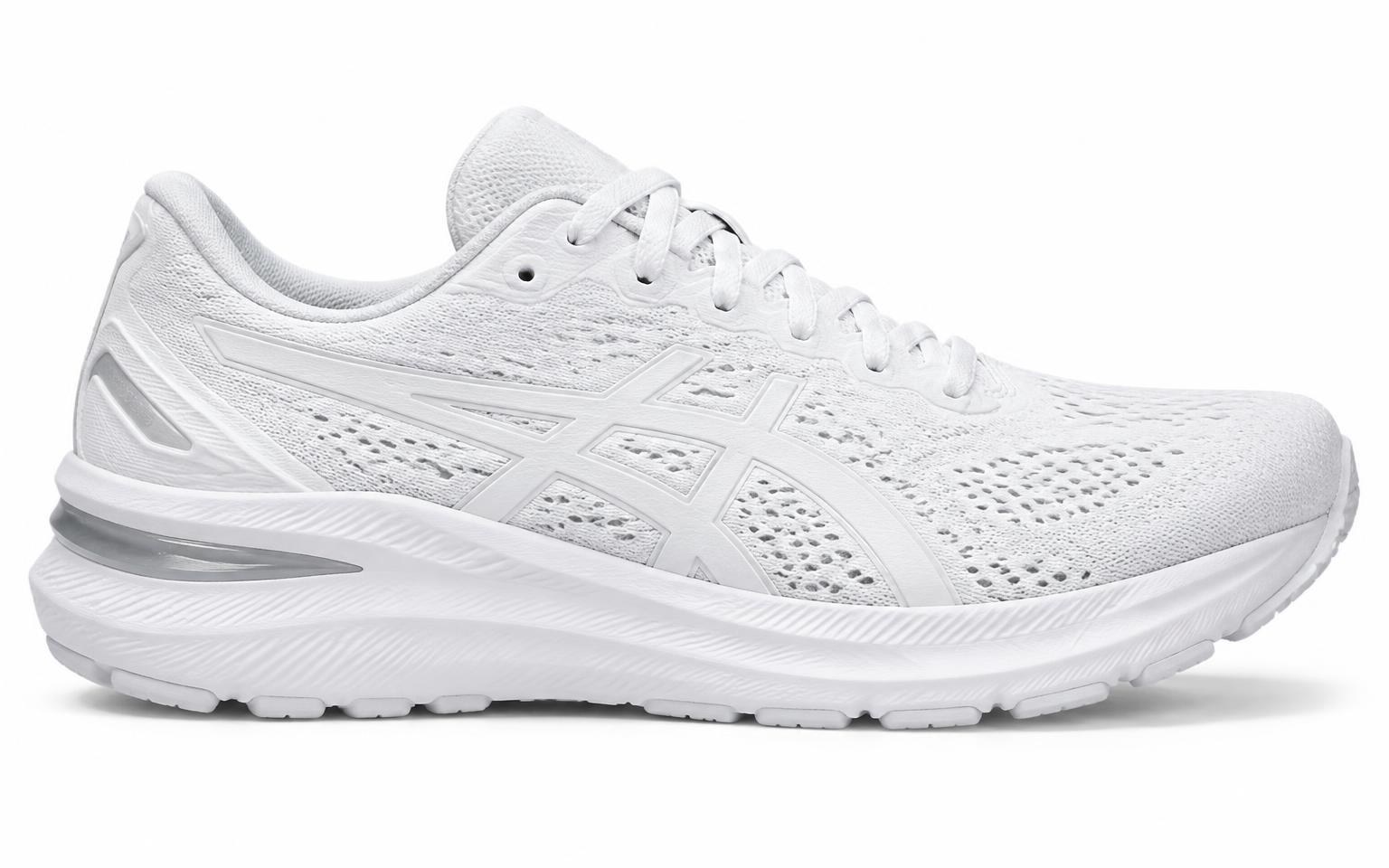
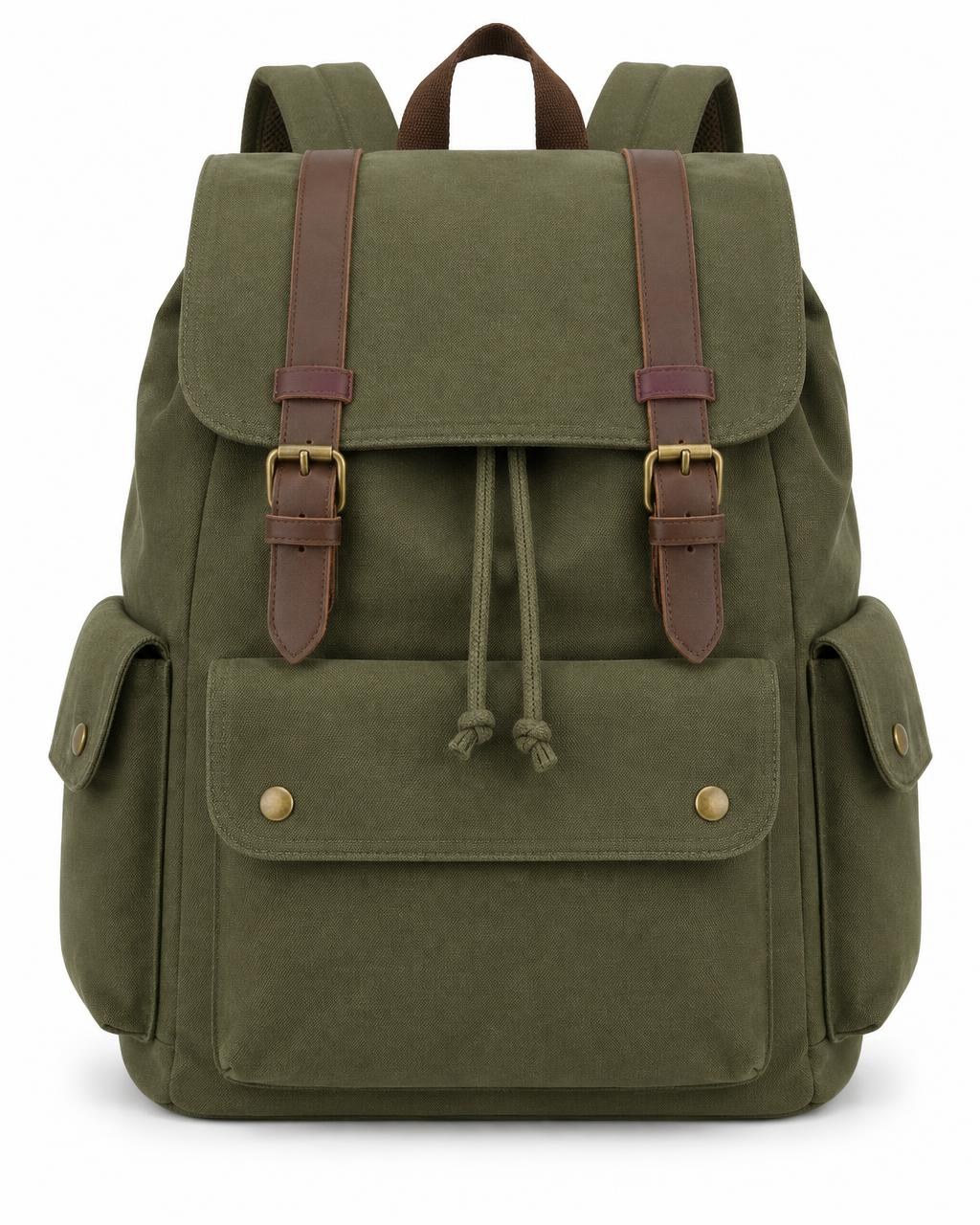
Supplier photos with mixed shapes, sizes and empty space.
Depop starting points
A practical starting point for Depop photos.
These Image Fixer settings are a practical place to start when you want every listing photo to show the whole item.
Square canvas
Consistent 1:1 shape
Give photos from different phones and cameras the same square shape for a tidier shop.
Fit the full item
No cut-off hems or sleeves
The original photo is fitted inside the canvas, never stretched or cropped, so the whole item stays visible.
Consistent spacing
Editable Product Size
Product Size starts at 90%. Lower it to give tall items like dresses and coats more breathing room.
These are Image Fixer recommendations, not official Depop requirements. Always check the listing preview on Depop. Selling elsewhere too? Try the Etsy Image Resizer, or visit the Image Fixer homepage.
How it works
Prepare Depop photos in three steps.
- 01
Add your photos
Upload one photo or a batch of up to 30 JPG, PNG or WebP images.
- 02
Fit the whole item
Start with the Depop preset and adjust Product Size so the complete item stays visible with enough spacing.
- 03
Download your batch
Download one image individually or multiple finished photos together as a ZIP.
Built for one job
Make your Depop shop look consistent.
Image Fixer focuses on the repetitive work of preparing listing photos, without turning it into a full photo-editing workflow.
Keep the full item visible
Fit portrait and landscape photos into a square without cutting off hems, sleeves or shoes.
Consistent square framing
Use the same canvas and similar Product Size so your listings look like they belong together.
Prepare many listing photos
Process up to 30 photos at once and download the finished batch as a ZIP.
Depop photo guide
Depop photo size, cropping and framing explained
Pixel dimensions describe how much image data a photo contains. Aspect ratio describes its shape. A high-resolution portrait can still look tightly framed in a square tile: more pixels alone do not solve a composition problem.
This guide explains how to prepare Depop listing photos so the whole item stays visible, and keeps Image Fixer recommendations separate from Depop's own guidance.
Depop photo preparation reference
- Canvas shape
- Square (1:1) — Image Fixer recommendation
- Framing
- Fit the full item, don't crop it
- Spacing
- Product Size starts at 90%, lower for tall items
- Photos
- Your own original photos of the actual item
- Formats Image Fixer exports
- JPEG, PNG and WebP
- Batch
- Up to 30 photos at once
These are Image Fixer preparation recommendations, not official Depop size requirements. Depop's help articles do not set a specific pixel size here.
What size should Depop photos be?
We don't state an official Depop pixel requirement, because Depop's help articles linked below don't set one. What matters most is a clear, high-quality original photo and framing that keeps the item visible.
Image Fixer's Depop preset gives you a high-quality square export as a practical starting point. Every setting, including output size, remains editable.
Why does Depop crop my photos?
A portrait photo of a dress, coat or full outfit has different proportions from a square shop-grid tile. In square or grid contexts, differently shaped photos may appear cropped or zoomed, leaving a hem, sleeve or shoe out of view.
This is a practical framing issue, not an official Depop rule about every display. Preparing a square canvas beforehand lets you choose the spacing around the full photo. Always check the listing preview on Depop.
Cropping vs fitting: what is the difference?
- Cropping
- Removes portions of the original to match a target shape. A tight square crop can cut off a dress hem, trouser leg or the top of a coat.
- Fitting
- Keeps the complete original photo visible and places it inside the target canvas. Space is added around the photo instead of taking image content away.
For long dresses, pants, coats and full-body photos, fitting is often the safer starting point. Image Fixer preserves the original proportions; Product Size controls how much of the square canvas the fitted photo occupies.
How to prepare dresses, coats and other tall items
Begin with a photo that includes the whole garment. Leave room above the shoulders and below the hem before you start resizing.
- Check that sleeves, straps, trouser cuffs and shoes are present in the original.
- Fit the portrait inside the square, then reduce Product Size until the top and bottom have breathing room.
- Keep labels, fastenings and other important edge details away from the canvas boundary.
- Preview the composition before downloading, then check the final listing preview on Depop.
A full-length coat and a small bag should not automatically use the same scale. Adjust each photo separately where needed rather than cropping a tall item to fill the square.
Your first Depop photo matters
Make the actual item easy to recognize at a glance: clear lighting, the full product visible and a background that does not distract from what you are selling. Use additional photos for fabric texture, labels, fastenings, different angles and any flaws.
Depop's Visual Search guide advises buyers searching with a photo to use one clearly visible item and clear lighting without heavy filters. That is guidance for search input, not a listing-size rule or a promise about ranking.
Use your own photos of the actual item — see Depop's guidance on stock images.
Keeping listing photos consistent
When photos come from different phones, rooms and seasons, a shop can look uneven. Using the same square canvas and similar Product Size across a batch gives listings a more consistent look.
Upload up to 30 photos, apply one setup to the batch, then fine-tune individual images. One image downloads on its own; multiple images download together as a ZIP.
Common Depop photo problems and how to fix them
- My dress gets cut off
- Fit the full portrait image inside a square canvas instead of cropping it.
- My item looks too zoomed in
- Reduce Product Size to create more safe space around it.
- My shop grid looks inconsistent
- Prepare listings with consistent canvas proportions and similar product sizing.
- My original photos have different dimensions
- Process them together using the Depop starting point, then check each preview.
- I need to prepare many listing photos
- Upload up to 30 images and export the finished batch as a ZIP.
- Important details sit near the edge
- Reduce Product Size slightly so edge details have more breathing room; use another photo for a closer view.
Depop photo checklist
- Use your own original photos
- Keep the entire item visible
- Use clear lighting
- Show important details
- Show flaws honestly where relevant
- Leave safe spacing around the item
- Keep listing images visually consistent
- Check the final composition before publishing
- Use additional photos for important angles and details
What Image Fixer doesn't control
Image Fixer prepares image files, but it doesn't control Depop.
- It doesn't control how Depop displays or crops photos in the app
- It doesn't upload photos to Depop for you
- It doesn't restore parts of an item missing from the original photo
- It doesn't remove the original photo background
- It doesn't guarantee search ranking or sales
Selling the same item on other platforms?
Save your original photos and create a separate version for each marketplace. A crop that looks good on Depop may hide important details elsewhere. Compare the Poshmark photo guide for clothing listings and the Vinted image resizer before reusing the same image.

Your product photos stay on your device.
Image processing happens directly in your browser. Your product photos are not uploaded to an Image Fixer server for processing.
Need more? Explore all our free image tools.
Browse all tools →Questions
Depop photo resizing questions
What size should Depop photos be?
Depop's help articles do not set a specific pixel size for listing photos. Use a clear, high-quality original. Image Fixer's Depop preset exports a high-quality square image as a practical starting point, and every setting remains editable.
Should Depop photos be square?
Square photos are a practical way to keep listing images consistent and leave room around portrait items. This is an Image Fixer recommendation, not a claim that Depop requires every photo to be square.
Why does Depop crop my photos?
Portrait or differently proportioned photos may look cropped or zoomed in square or grid views. Preparing a square canvas with space around the original photo gives you more control over framing, but it cannot control how every Depop screen displays a photo.
How do I fit the whole item in a Depop photo?
Upload your photo, keep the Depop starting point and lower Product Size if you need more space around the item. Image Fixer fits the original inside the square canvas instead of cropping it.
Can I prepare portrait photos for Depop?
Yes. Image Fixer keeps the original proportions of a portrait photo and places it inside a square canvas, adding background space at the sides instead of cutting off the top or bottom.
How should I photograph dresses or long items?
Start with an original showing the whole garment, including the hem and sleeves. Fit it inside the square canvas and lower Product Size to leave room above and below, then check the listing preview on Depop.
Can I resize multiple Depop photos at once?
Yes. Upload up to 30 JPG, PNG or WebP photos, apply consistent settings and fine-tune individual images when needed. One image downloads on its own; multiple images download together as a ZIP.
Does Image Fixer upload my photos?
No. Photos are processed locally in your browser and are not uploaded to an Image Fixer server. Download the finished files and add them to your Depop listings yourself.
Is Image Fixer free?
Yes. Image Fixer is free to use and does not require an account or sign-up.